

AI Production Assistant Step-by-Step Instructions
You can view the instructions on this page or download the PDF version.
Playbooks
We are excited to announce a new, easy-to-use set of recipes we are calling our Playbooks. We have revamped the Generate Playbook to include two steps about creating an effective Activity Purpose, which is our approach to backward design. We are also featuring the Review Playbook to evaluate the pedagogical quality of their activity and make changes if desired.
Generate Playbook
The Generate Playbook has 8 steps. This is designed primarily to work with an updated reference file of some sort, though you can start at any step, provided you have already manually added the content to the editor that meets the needs leading to that step.
Note: the 8 steps have changed with this new release as of March 2026
The 8 steps are as follows:
- Discuss goals and desired outcomes with the PA
- Draft possible activity purpose statements and pick one, or create your own
- From reference(s) and activity purpose, create LOs
- Create a story theme and characters
- Create the story
- Create the materials and replace placeholders
- Create the questions and replace placeholders
- Create end-of-activity feedback, background image, and intro page
Note: Highlighted content means you should look to replace that content based on the context of your activity.
Starting from your AI Sim lab project
Here is a step-by-step guide to using the AI Production Assistant to create a new roleplay simulation using the Creation Playbook:
-
Create a new SmartChat (roleplay simulation) activity
- From a project in Muzzy Lane, select "+ new activity."
- Select SmartChat
- Select "Create new activity."
- Name the activity and click "confirm."
- You will be directed to the Activity Page for your new activity
- Edit the new activity
- Click "edit" from the top of the button stack on the right
If you are working from a reference file, such as an email, outline, case study, syllabus, or lesson plan, continue. If you already have your LOs, you can enter the LOs, their descriptions, and jump to step three below.
Uploading your reference file(s)
-
Assuming you have anything from a rough outline, email, up to a full-blown lesson plan, case study, or existing evaluation, we can take that content and quickly convert it to a simulation. This file can take the form of a Word, PDF, TXT, or CSV file.
- Any developed plot, specific interactions will be leveraged and included by the Assistant, and any holes will be either discussed or filled in.
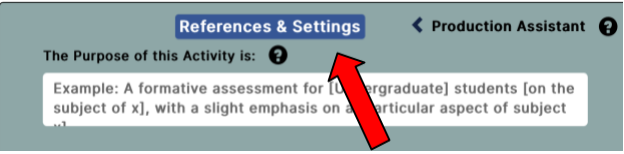
- While in the Production Assistant, click on "References & Settings" at the top.
-
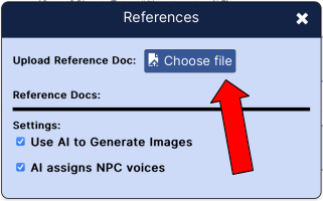
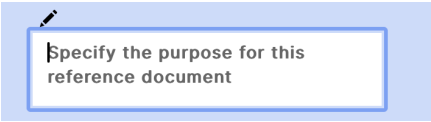
Then, you can choose the reference from your files
-
Note: The information uploaded here stays on our secure data server and is not part of a package sent to a client at run time.
- While in the "References & Settings" tab, turn on "Use AI to generate images" if you would like images in your activity.
Now is the time to start using the prompts.
Using the Prompts
-
Using the Production Assistant, click on "select a prompt..." at the bottom of your screen
- Step 1
- Click on “1. Discuss goals and desired outcomes for the activity.”
- In this step, you will have a conversation with the PA so that it can better understand your goals for the activity.
- If you already have an activity purpose statement in mind, feel free to jump to step 3.
- Click “Submit”
- Answer the PA’s questions and give your own thoughts
- Once the PA tells you it has enough information to build an effective activity purpose statement, it will prompt you to move to step 2.
- Step 2
- Click on “2. Suggest Activity Purpose Statements”
- In this step, the PA suggests Activity Purpose Statements for you to use.
- Click “Submit”
- The PA will generate two possible Activity Purpose Statements
- You can use one of these suggestions directly by choosing it from the provided choices.
- If you don't like any of the choices, click "continue discussing" to give the PA feedback and more requests.
- You can also edit one of the suggestions to your liking, or create your own using your previous conversation with the PA as a guideline. If you do this, make sure to type it in the text box under "The Purpose of this Activity is:"
- When you are ready, move to step 3.
- Save your work by clicking “Save” in the upper right (this will give you a base to build multiple activities).
- Step 3
- Click on “3. Create LOs using reference and activity purpose” and feel free to add your own thoughts about LOs to this request.
- Make sure you have written an Activity Purpose and, if desired, uploaded a reference material.
- In this step, the PA uses reference material(s) and your activity purpose to create relevant learning objectives (LOs).
- The LOs created will be referenced throughout the activity when creating the story, questions, and materials.
- Click “Submit”
- The “Objectives” tab on the right side of your screen will be open and will show your LOs.
- If you want to start over, click on Revert Request, and then add instructions to step 3 about what you would like to see.
- When you have LOs you are happy with, move to Step 4.
- Save your work by clicking “Save” in the upper right
- Step 4
- Click on “4. Create a story theme and characters.”
- In this step, the PA suggests a story theme and creates characters to support that story.
- The story theme will include an outline of the general plot and the student’s role in that plot. The characters will have relevant roles and will interact with the student by posing questions, performing actions, and having conversations.
- The request will read: “Generate Playbook Step 4 Purpose: suggest a story framework and generate characters (recommend a story arc, with suitable engagement and drama) (put the student (player) in a key role).”
- Feel free to change any of the text in the parentheses and/or add your own thoughts about the characters and the story theme to this request.
- Click “Submit.”
- There is a story framework in the production assistant above, and characters have been added to the “Characters” tab on the right side of your screen.
- If you don’t like anything about the story framework or the characters, click on Revert Request, and then add a comment to prompt 4 about what you would like to see.
- If you want to change the voices of your characters, go to the characters tab, click the “voice options” button in each character, and assign a different voice. You may also change the appearance, name, or role of any character.
- When you have characters and a story theme you are happy with, move to Step 5.
- Save your work by clicking “Save” in the upper right
- Step 5
- Click on “5. Create the story. In this step, the PA creates the story with character actions, conversations, and placeholders for the materials and questions.
- The request box will read: “Generate Playbook Step 5 Purpose: Using the existing characters and the story outline, produce the story with actions, conversations, and placeholders for materials and questions. (Create one placeholder PROMPT per LO. At least one placeholder PROMPT in the activity should be an open response.)”
- NOTE: In this case, PROMPT = question. If needed, change the text in the parentheses to adjust the default number of questions **per LO** and the default number of **total** questions that are open-response. ○ Click “Submit.”
- There is now content in the “Workspace” tab on the right side of your screen.
- The story will contain “nodes.” A node is one unit of content in the activity. There are different types of nodes:
- PROMPT nodes may contain questions that will be revised in step 6, so don’t change them yet.
- Event nodes are the narration of the story (no one is speaking).
- Dialogue nodes will have a character to the left of them, indicating who is the speaker of that node.
- Material focus nodes are where materials will show up in the activity, and they will be filled in with actual content in step 5.
- Review the story and make sure it looks good to you. If it doesn’t, click on Revert Request, and then add a comment to prompt 5 about what you would like to see.
- You can also click on any text on the right side of your screen to change the wording manually.
- When you are ready, move to step 6.
- Save your work by clicking “Save” in the upper right.
- Step 6
- Click on “6. Create the materials and replace placeholders.”
- In this step, the PA creates materials that will replace the placeholders.
- If you have additional ideas for materials (ex: maximize colors, images, or tables), add them in a new line after the “purpose” line.
- If you want images, make sure “Use AI to Generate Images” is turned on in Settings in the “References & Settings” tab in the Production Assistant.
- Materials are made to provide supplemental information and guide the questions. Materials can include reports, emails, blog posts, newspaper articles, etc. Most questions will require students to understand and reference the materials. Many materials feature colors, tables, or images.
- Click “Submit”
- Review the materials in the “Materials” tab on the right side of your screen and make sure the actual materials replaced the placeholders.
- Look at the materials. Did it make too many material tabs? Would you like some color or more formatting changes? Feel free to revert and add some details to the materials generation prompt, such as suggesting it limits the number of material panels to X #, and resubmit.
- Note: If you turned on “Use AI to Generate Images”, images may appear in your materials. Images being created may take a moment to fully generate.
- Note: Materials default to off. They will become enabled in the material focus nodes. For additional manual manipulation, you can toggle the star to bring focus to that materials panel, or click on the eye to allow a panel to be seen, or the eye with a line through it to hide it.
- When you are ready, move to step 7.
- Save your work by clicking “Save” in the upper right
- Step 7
- Click on “7. Create the questions and replace ‘PROMPTs’”
- The request box will read ○ “Creation Playbook Step 6 Purpose: create the questions (Use default feedback where correct responses are confirmed by a speaker, and non-correct responses use two speakers).”
- Each question will evaluate the student based on one of the LOs. The assistant will create multiple-choice and open-response questions.
- Multiple choice questions will have a correct answer, a partially correct answer, and an incorrect answer. The open-response questions ask the student to make a choice and explain why they did so.
- Both types of questions will have in-character feedback based on the student’s response. Feel free to change and/or add your own comments to the text in the parenthesis
- An example of another option could be “Use feedback to reflect a summative assessment style with minimal feedback.”
- Click “Submit”
- Review the questions and responses in the “Workspace” tab.
- For the open response(s), there is a sample correct answer. All the scoring rules and feedback are stated in the questions upon opening.
- We suggest you test your open response rubric(s) by using a preview from the location (click the icon that is a circle with the play button inside, and then “Preview” in the top right corner of your screen).
- If you have any changes you want to make, click on Revert Request, and then add a comment to prompt 7 and try it again. You can also click on each question and change any wording manually.
- When you are ready, move to step 8.
- Save your work by clicking “Save” in the upper right
- Step 8
- Click on “8. Create activity feedback, an intro page, and a background image.”
- In this step, the PA creates feedback that students will see at the end of the activity, an intro page, and a background image.
- Based on how well they answered the questions, the students will receive a score in each LO, along with feedback about what was done well and what can be improved. The score for each LO will also be averaged into an overall score.
- The intro page invites the student to participate in the activity. If you have additional requests for the intro page (ex: certain information, colors, etc.), add them in a new line after the “purpose” line. If you want images, make sure “Use AI to Generate Images” is turned on in Settings.
- The assistant will also create a background image that will be visible to students as they are playing the activity.
- Click “Submit”
- Activity feedback is shown in the “Feedback” tab on the right side of your screen, where you can directly change the content in each feedback area.
- The Intro page is shown on the “Intro” tab on the right side of your screen. The image may take a moment to generate. Feel free to manually change the text by clicking on the “edit” button on the right side of your screen.
- Assuming AI-generated images are on, you can view the background image by previewing the activity.
- If you don’t like anything about the feedback, the intro page, or the background image, you can click “revert request,” add a comment to prompt 8, and try again.
- Congratulations, you have completed the playbook!
- You can play your activity from the perspective of a student by clicking “preview” in the top right corner. We suggest you use the comment feature on the right side of the panel to make notes.
Tips
In the PA:
Revert Request: Think of this as giving you freedom to explore. Use this feature to return the activity to the state before your last prompt was sent to the Assistant if you were unhappy with the results or if something unexpected happened. You can then modify your prompt or try again if you think your prompt has all the appropriate information. As of now, you can only revert to the previous prompt. This is why saving is so useful.
Chunking: Overall output is limited in length, so ask for smaller or chunked changes that can happen in several requests.
No JSON: If you have a question or comment for the Production Assistant, but you don’t want to change anything in the editor, say “No JSON” at the end of your request.
If working outside of the PA in the editor:
Save: We recommend you save your project after every step. That way, you can go into your history and click on any save to restore your project to that point. It’s helpful to put the number step you just completed in the “Save Message” text box. That way, you can easily tell which save is from which step.
Just-in-time Help: Click the "?" button on the right panel to open the just-in-time help panel, which provides context-sensitive help as you move your mouse over UI elements.


