
What is SmartChat?
Our SmartChat template, now enhanced with many AI features, allows authors to build branching rolelay assessments that enhance authentic learning outcomes seamlessly.
The Production Assistant creates full assessments straight from your learning materials and content. You can provide syllabi, case studies, lesson plans, or simply your learning objectives, and the Production Assistant will walk you through the design process using the Generate Playbook prompts.
SmartChat supports many question types, including voice-enabled open response, where learners answer challenges in their own words (spoken or typed). Characters in the roleplay assessment will act as virtual colleagues and provide personal feedback to the learners' responses, which are scored against the learning objectives.
.svg)
SmartChat supports a number of layouts and has a unique "phone chat + data" learning model. Learners are assigned to play a role, interact with their virtual colleagues, analyze information, and make decisions as illustrated below:
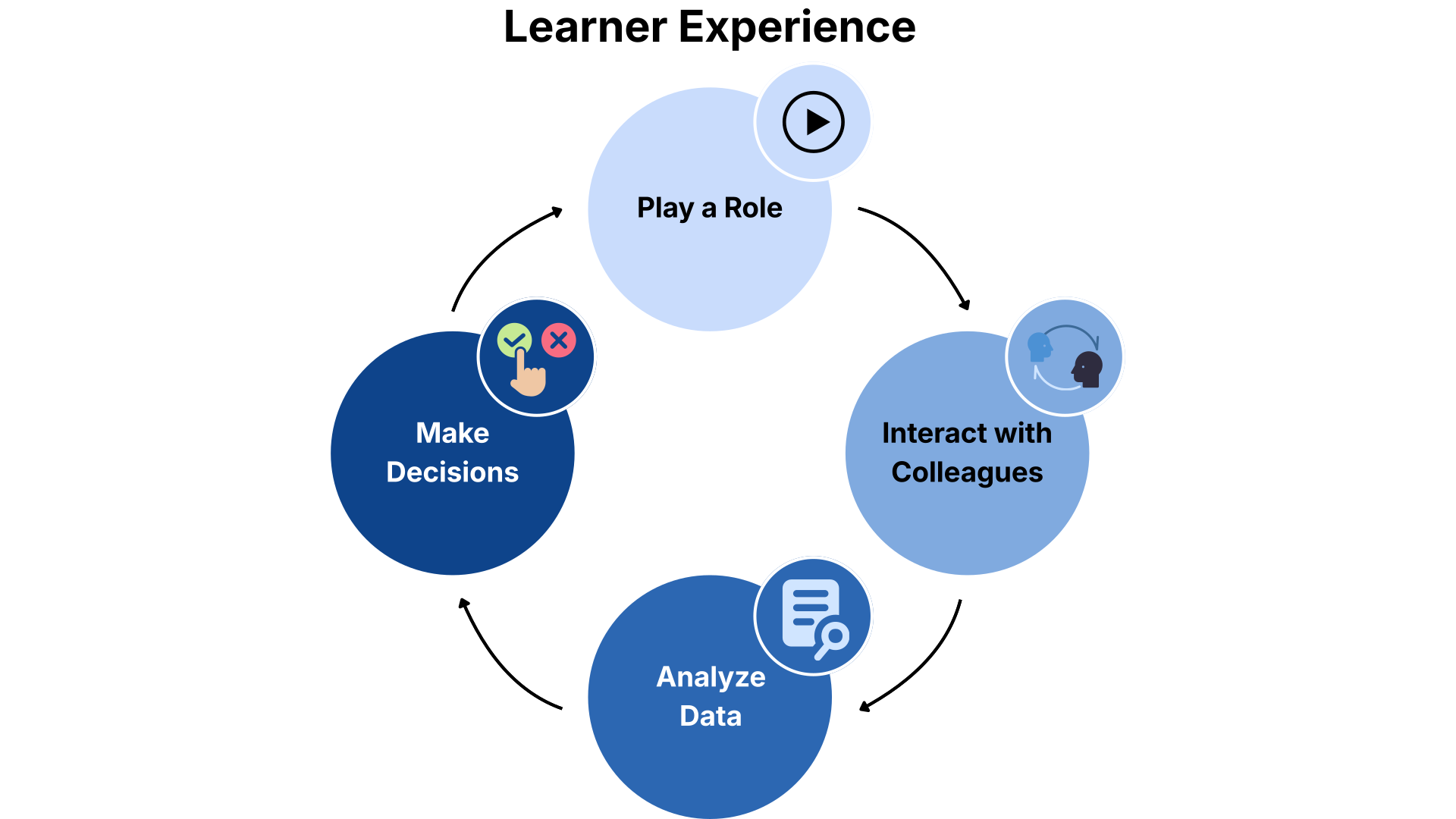
SmartChat lets you assess students in a variety of ways. You can use scoring to measure a student's decision-making, competencies, comprehension, or how well they manage a resource (eg, finances). Live feedback will be provided instantly to learners, and educators will receive cumulative assessment data from learner performance to their gradebooks.
What are the Best Use-Cases for SmartChat?
This template is best used to reinforce the following:
- Demonstrating knowledge and understanding of concepts in a conversational, real-world context.
- Assessing decision-making across multiple dimensions and providing instant feedback after every player's choice.
- Formal assessments in a friendly, informal context.
Step-by-Step Guide
The Production Assistant seamlessly builds roleplay assessments from your learning materials. To learn more about the authoring process, you can access our detailed step-by-step guide here.
How to Manually Create an Assessment in SmartChat
The following authoring steps will guide you to manually create your assessment in SmartChat:
-
Add images, videos, audio, and content blocks with feedback to construct a scenario.
- Set up objectives and score feedback.
- Create materials that can be accessed at any time during the activity.
- Create Intro and Outro screens (primarily consist images and text).
- Choose non-player characters for the learner to interact with. These will be the virtual colleagues.
- Choose avatars that the player can choose to represent their voice within the scenario. Keep in mind that these avatars should not be the same as the non-player characters.
- Preview and publish your assessment!
Additional Resources
We offer the following support resources to our authors:
- Weekly open office hours Tuesdays at 12 pm ET (join link)
- Discord community for updates and questions (join link)
- Email support (authorsupport@muzzylane.com
- This help center!
Assets needed:
- Text and Copy
- Logo (.jpg, .png, .gif) (optional)
- Images (.jpg, .png, .gif) (optional)
- Links to hosted videos (optional)
- Audio (.mp3) (optional)