
.csv files can be created using a word processing or spreadsheet program like Excel, Numbers, Word, or Pages.
Whether you are using a spreadsheet or word processing program, the first row of the document should be the names of the different categories of the Align. In a spreadsheet, these will be in different cells, in a word processing document, separate the items with commas. The subsequent rows underneath represent matches with the matched items from each category in different cells or separated by a comma in the order in which the first row is laid out.
Examples:
In a spreadsheet:
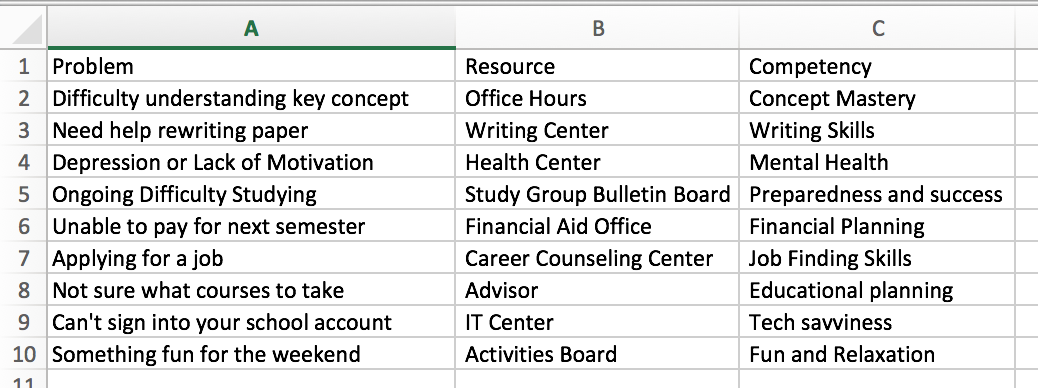
In a Word Document:
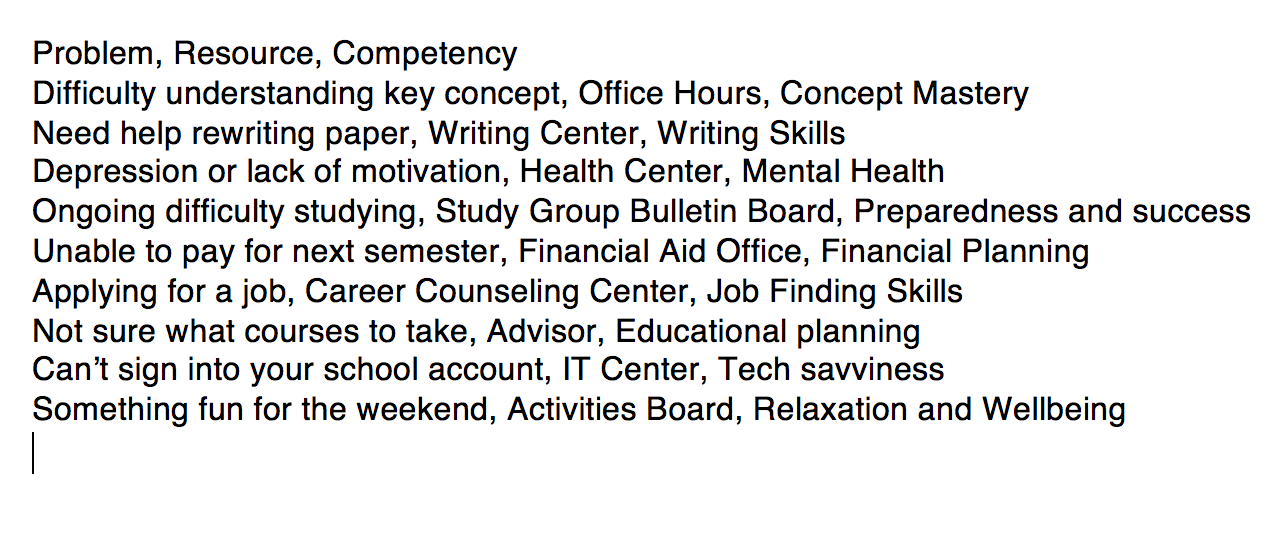
Next, you have to export the file as a .csv file. To do this in spreadsheet programs, go to file>save as... or file>export to... and choose the file type .csv.
If you are using a word processing program, do the same thing: go to file>save as... or file>export to..., but you won't see .csv. Instead, choose .txt. You then have to find the exported file in your file browser/finder and change its name so that it ends in .csv.
In Author, editing an Align activity, on the bottom right hand corner, there is a button that says "Upload Category CSV." Click it and choose the .csv file you created and this will populate the information into the template.
NOTES:
-
You cannot add images, formulas, or sounds directly into Align using a .csv. We recommend you use placeholder text in your .csv and after uploading it into the template add the media.
-
You cannot add multiple items to a category for a match where more than one item matches with items in the other categories. We recommend you use placeholder text in your .csv and add extra matches to the category from within the template template.
-
You cannot add distractors into an Align using a .csv file. You can only add them to your activity using the in-template editor.