
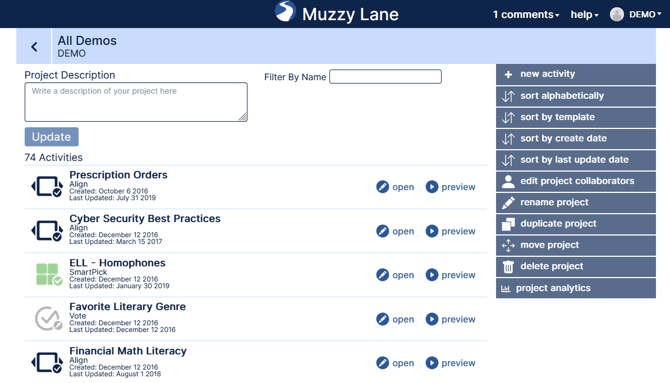
Author Banner: Available throughout Author. Clicking will return you to the dashboard.
Help Menu: Available throughout Author. Expands to provide to "Getting Started," "Help Center," and "New Ticket," on the Author Support Forum and our "Terms and Conditions," and "Privacy Policy."
Account Menu: Expands to let you logout or manage your account.
Return to Dashboard: Brings you back to the Dashboard view where you can see all of your projects.
Name of Project and the Channel: The project resides in.
Project Description: Description/purpose of the activities in this project.
Filter by Name: Filter the activities in this project by name.
Template Icon: Indicates what kind template an activity is. If it is grey with a little pen icon it is unpublished. If it is green with a check box has been published.
Open Activity: Brings you to the selected activity's activity page.
Preview Activity: Allows you to immediately play the most recently saved version of your activity in Preview Mode.
New Activity: Opens template selection screen to choose what template to use for your new activity, which will be created in the project you are currently in.
Sort Alphabetically: Reorder activities alphabetically according to their name. Click a second time to reorder reverse alphabetically.
Sort by Template: Reorder activities alphabetically according to their template type. Click a second time to reorder reverse alphabetically.
Sort by Create Date: Reorder activities chronologically by when they were created or if you click a second time reverse chronologically.
Sort by Last Update Date: Reorder projects chronologically by when they were last edited or if you click a second time reverse chronologically.
Edit Project Collaborators: Opens "Edit Project Collaborators" window, which shows who has access to the activities in the project. Allows you to invite other users with Author accounts to collaborate on the project by inputting their email address or change their collaboration permissions. There are two levels of collaboration permissions. "Author" and "Project Manager."Project Managers have access to all functionality for the project and activities therein, but Authors have some restrictions. Author's cannot add new project collaborators, duplicate, delete, or rename the project. They also cannot duplicate, delete, rename, or publish activities within a project.
Rename Project: Change the name of the project
Duplicate Project: Creates a copy of the project including all of the activities it contains. You can only do this to projects on your channel, otherwise you will not see this button. The copy will be created in your channel.
Move Project: Moves the project including all of the activities it contains. You can only do this to projects on your channel, otherwise you will not see this button.
Delete Project: Deletes the project including all of the activities it contains.
Project Analytics: Shows analytics on usage of the activities in this project, including overall totals and students, assignments, and attempts per activity.