
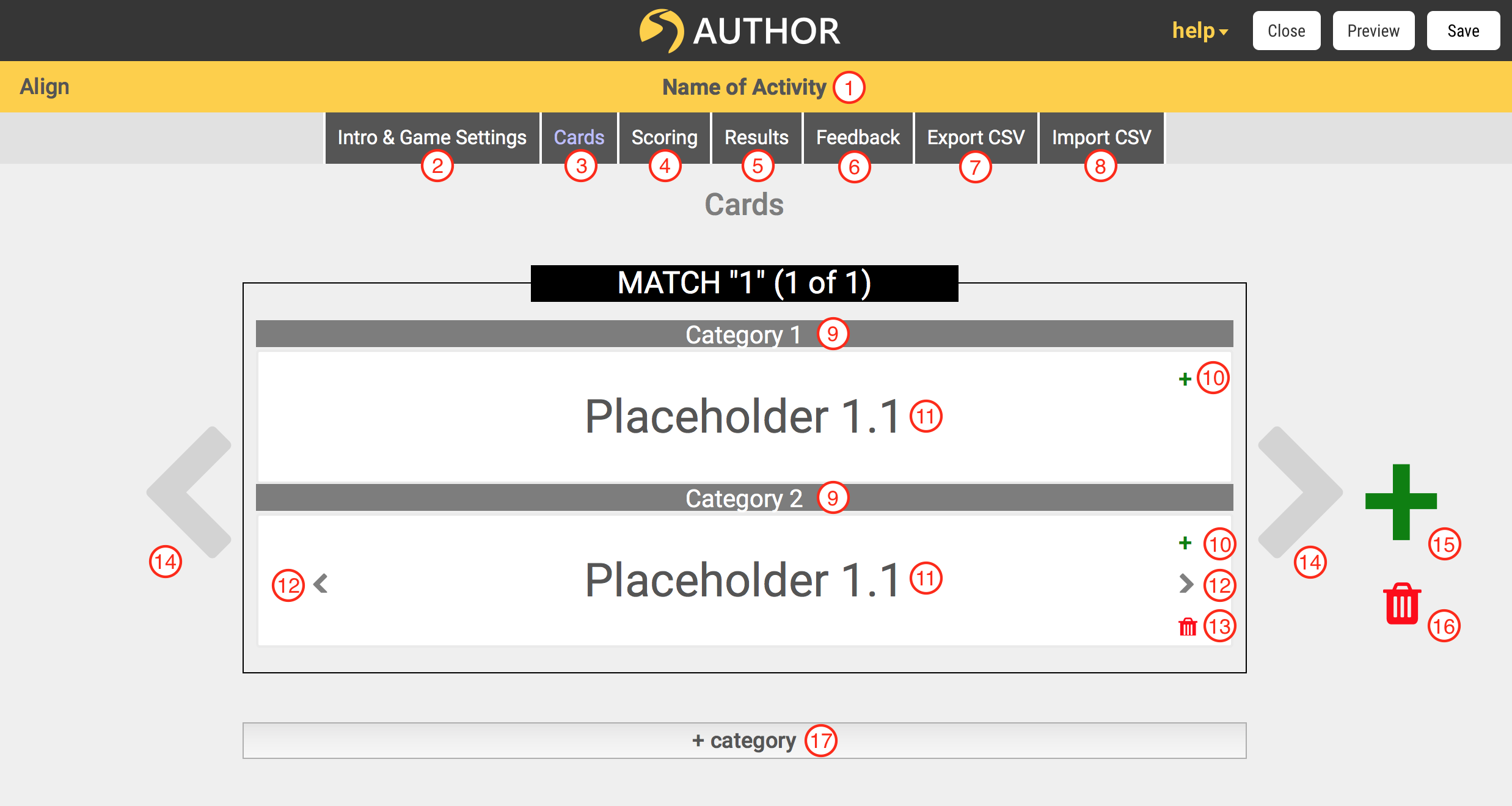
This article provides an overview of how to build an Align activity. Each step includes links to more detailed breakdowns of how to use the different components of the template. Below is a screenshot of the editor in a new Align activity with the different elements labelled for reference.
Create, Access, and Name an Align Activity
Align activities are created in a project. To learn more about the 'Project Dashboard', click here [cta link]. Once the activity has been created, the page is accessed by clicking 'edit activity' from within an Activity page. To learn more about the activity page, click here [cta link]. The name of the activity, which was designated when the activity was created and can be changed on the activity page, is displayed at the top of the editor. (1)
Set up Match Categories
You can set up matches directly in the editor or you can set up your matches using a .csv file.
To learn how to build an activity using a .csv file click here.
If you are starting from scratch in the editor rather than using a .csv file, set up your categories by clicking on the name of each category. (9) To create a new category, click the ‘+category’ button. (17) For a more detailed break down on how to edit categories click here.
To import categories and matches from a .csv file, click ‘Import CSV.’ (8) To export the Align matches to a .csv file, click ‘Export CSV.’ (7) Exporting the activity to a .csv file allows you to edit the content in a spreadsheet program like Excel, which you can then import back into Author with your changes. To learn more about how to build an activity using a .csv file click here.
Add Items to your Match Categories
Once you have set up categories, create matches by adding sets of items. Each “match card” represents a set of answers, which when the player aligns those items from each category will be judged as correct. To edit an item, click on the placeholder or previously used text. (11)
To add another item to a category, for a match that has multiple correct answers, click the plus button within that category. (10) Use multiple items in a category for a match where more than one item matches the items in the other categories. For example, if you are matching the name of a country with the languages spoken there, for Switzerland, you would want four items in the languages category: German, French, Italian, and Romansh. If there are multiple items in a category, you will see an arrow next to the item, (12) click it to see the other items in that category. If there are multiple matches, you will also see a red trashcan on the right hand side of the item (13) click it to delete the item.
To create a new match card, click on the green plus button. (15) To delete an entire match card, click the red trashcan. (16) To navigate between matches cards, click the grey arrows on either side. (14)
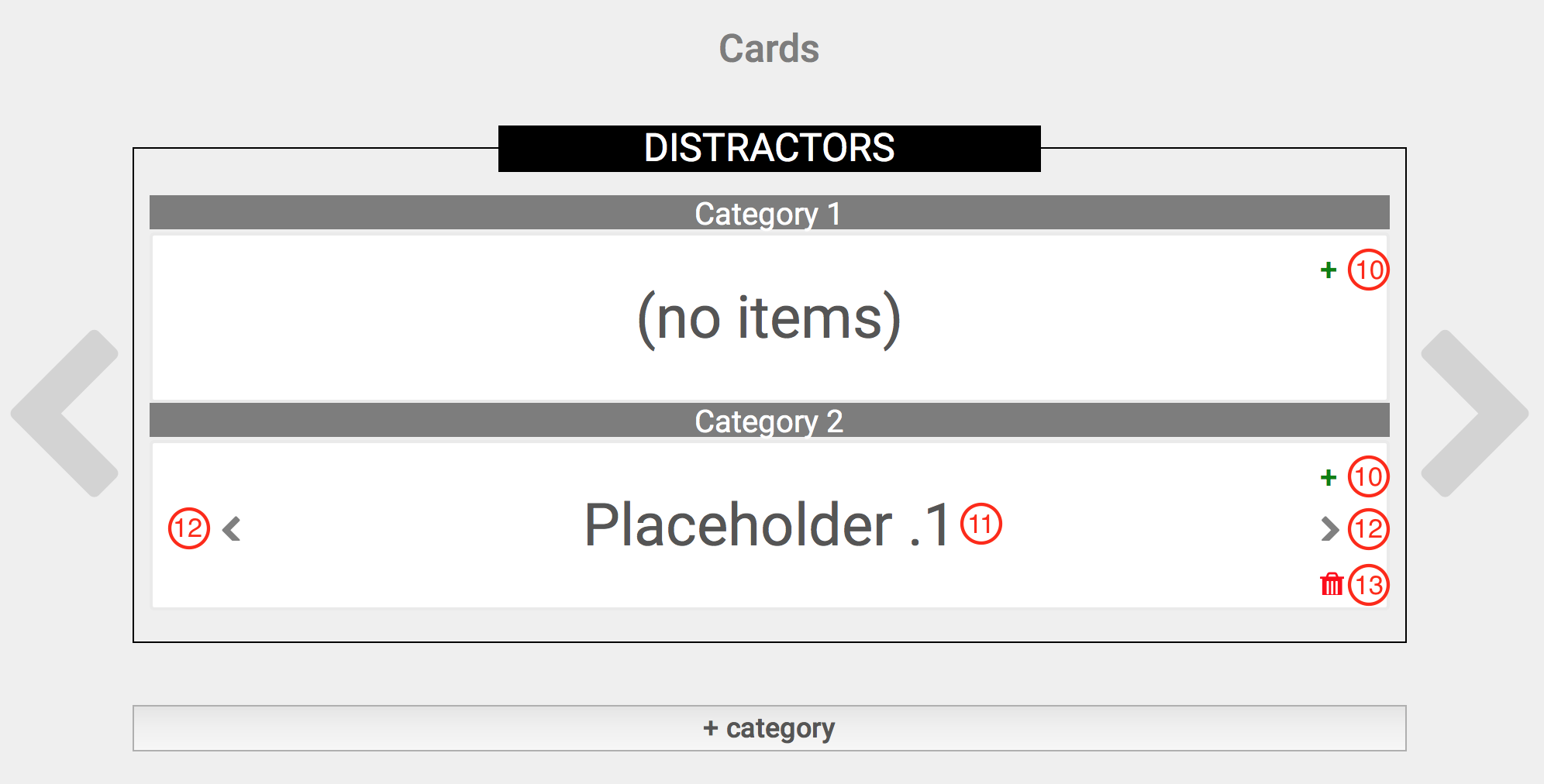
If you cycle through matches by pressing the arrows, you will reach the Distractors card. Distractors are items that do not match any particular match card. Add as many of them as you want to any categories by pressing the plus button (10) within the category on the Distractors card. Once you have created a distractor item, edit it by clicking on the placeholder or previous text. (11) If there are multiple items in a category, you will see an arrow next to the item, (12) click it to see the other items in that category. You will also see a red trashcan to delete the item. (13)
Set Introduction and Game Settings
Add and adjust introductory materials by clicking ‘Intro & Game Settings.’ (2) This section will let you add a logo, title, subtitle, instructions, how-to-play text, an intro image, and adjust the text of other buttons and titles. You can also set whether or not the player will be presented with the correct matches at the beginning of the activity.
Set up Scoring
Adjust the way scoring behaves by clicking the ‘Scoring’ button. (4) This section allows you to choose how many matches are required to complete the activity, the score value a player earns by correctly matching a set, and whether points, accuracy, and the number of matches completed/remaining are displayed to the player. For a more detailed breakdown on the Scoring section, click here.
Set up an End Screen
Add and adjust materials to display at the end of the activity by clicking the ‘Results’ button (5). This section allows you to adjust the text and images that a user will see at the end of the activity.
Set up Feedback
Create feedback messages that will display for the player when they score within a specific range at the end of the activity by clicking the ‘Feedback’ button. (6)