
In both workspae and navigator views, you will see the same controls. The controls have the same functionality, but in the workspace, you can use the controls before or after the selected node. In the navigator, you can only use the controls after a node, so whatever you add will follow the selected node. In the navigator, you can only use the controls after a node, so whatever you add will follow the seleted node. Here is where to view these controls in each view.
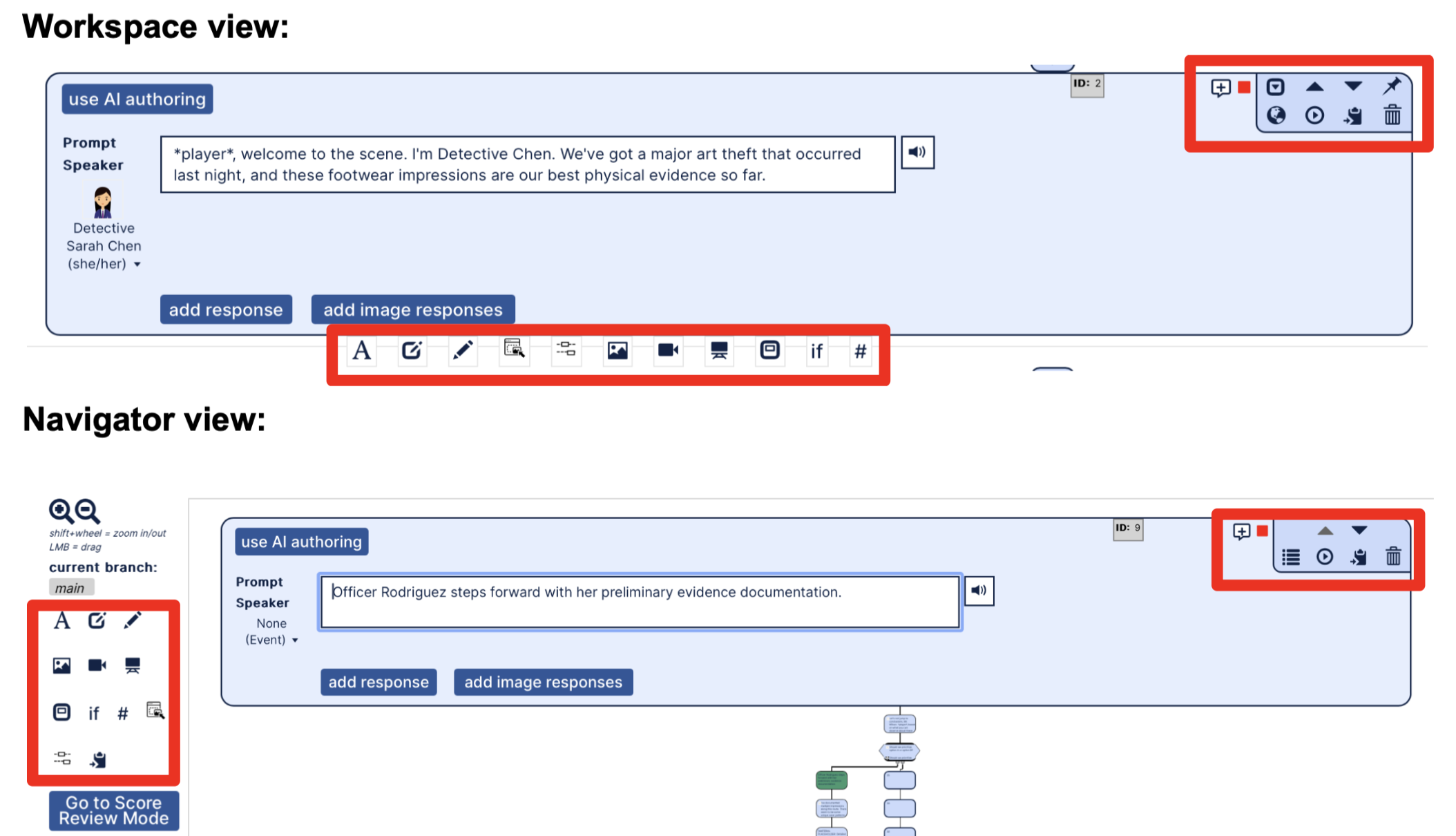
Node Controls:
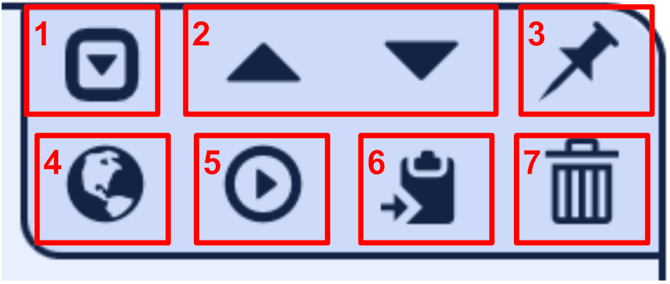
-
Expand/Collapse
- By default, when you create or click on a content block, image, or video, it will expand to allow you o edit it and collapse all other nodes. Click on a collapsed node to expand and edit it. You can also expand or collapse a node by clicking on this button.
- Move Up/Move Down
- To reorder nodes, click the 'move up' and 'move down' buttons.
- Pin
- If you want to keep several nodes open at once, click this button on the nodes you want to remain open.
- Go to Navigator/Workspace
- To access the Navigator view, either click the 'Navigator tab' at the top of the screen or go to a particular node, expand the node in the Workspace and click this button.
- The navigator helps you see the overall layout of your activity.
- While in the Workspace, clicking here will bring you to the same node, but in the Navigator view.
- While in the Navigator view, the following icon will bring you to the same node in the workspace:

- Preview From Location
- To preview from a particular place in an activity, epxand the node from which you want the preview to begin, click this button, and then click the Preview button on the top right of the Editor window.
- Copy Node
- To duplicate or copy and paste a node from the Workspace or Navigator, click on this button. Once a node has been copied, a paste button will appear above and below any expanded node:

- Click this button to create a new version of the copied node in the desired place. Nodes can be copied from the Workspace and pasted in the Navigator or vice versa.
- To duplicate or copy and paste a node from the Workspace or Navigator, click on this button. Once a node has been copied, a paste button will appear above and below any expanded node:
- Delete Node
- To delete a node, click on this button.
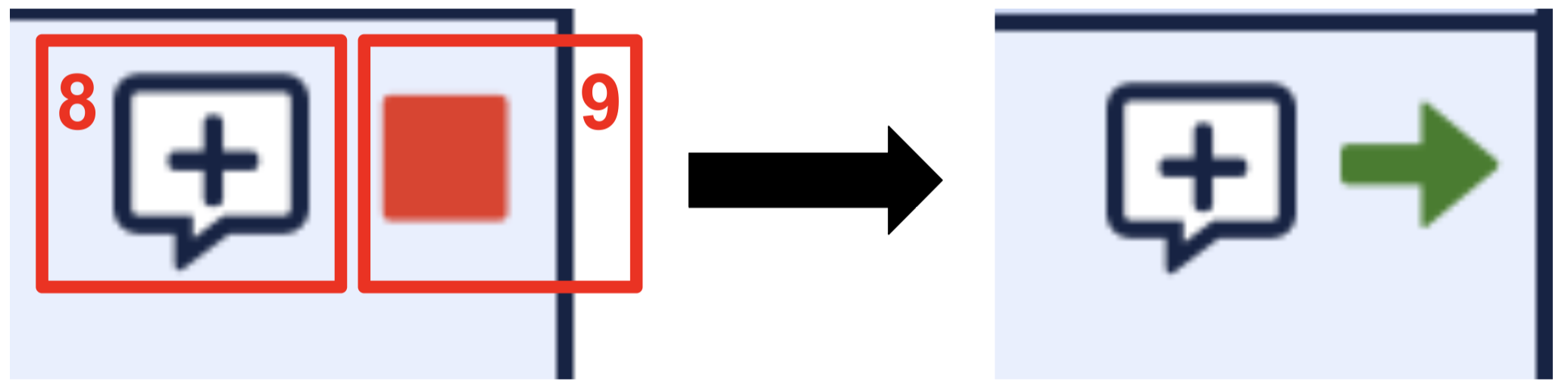
- Add Comment
- To add a comment for yourself, your team, or the Muzzy Lane team, click on this button. It will automatically open a text box for your comment. Enter your comment, and you can then assign it to someone else, if desired.
- Auto-Advance
- To improve the pace and rhythm of an activity and to reduce the number of times that a student needs to click to advance the narrative, you can set any node to automatically go to the next node by clicking the red square.
- If the toggle is a red square, which it is by default, it means that the node is set to require the student to click the continue button to get the next node to come up. If the toggle is a green arrow, it means that after the node has been displayed to the student, after a brief pause, the next node will appear automatically.
- If speech is on, the node will forward or not based on the end of the audio for that node.
Workspace/Navigator Controls:

- Add Text Node: To create a text node, click this button. Within a content block, click in the text field to enter text.
- Text nodes deliver text to the student in the narrative. This text can be delivered as if spoken by a character or delivered in the narrative voice, which we sometimes refer to as an "event", when the text is describing an action that is taking place.
- To turn this into a multiple-choice text or image question, click on one of the following buttons after creating the node:

- Add Challenge Question: Add a challenge question using this button. The following are the challenge nodes we support:
- Select All That Apply: Create a list of possible responses to a question where the student will check which answers meet the conditions.
- Categorize: Create categories and define text items that belong to each category. Students will drag and drop text items into the appropriate category.
- Image Hot Spot: Upload an image and identify accessible hot spot areas. Scores and functions as an MCQ, including branching.
- Add Open-Response: Click this button to add an open-response question type.
- Add Drag and Drop: Click this button to add a drag and drop question type.
- Drag and drop nodes can make an interactive visual experience of matching or sorting. Upload an image and define drop zones and items belonging to each drop zone. Ites can be elements from the image, or Text Labels added to the image.
- Add Fill-in-the-Blank: Click this button to add a fill-in-the-blank question type.
- Fill in the blank work by placing a blank in a sentence and having the student type or drag a word to complete that sentence.
- There are three types of fill-in-the-blank questions:
- Number: The students will enter a number as their answer
- Text-drag: The students will drag a response from a provided word bank to the blank spot
- Text-type: The students will enter text as their answer
- Store behavior saves the value students input as a variable, which can be set up to interact with other variables, affect tables, charts, and conditionals later in the activity. Both numbers and text can be stored. First, create a variable in the Variables section of the Editor, then choose that variable from the dropdown below. The value that the student inputs will overwrite any existing value for the chosen variable.
- Add Image Node: To add an image node, click this icon where you want the new image node to be inserted.
- Image nodes include images, alt text, and long descriptive text for screen readers, and audio files.
- Images must be under 3MB and can be in the following formats: JPG, PNG, GIF
- Add text to the 'Text Label for Screen Reader' field next to or below an image to aid users with vision disabilities using screen reader software. Use long descriptions if you want an icon to be available for all students, or if you need more information about the image, or need to use the HTML markup for language definition. Set the image as decorative if it is not pedagogically important, such as for setting the scene, so that screen readers will skip over the description.
- Add Video: To add a vieo node, click this icon where you want the new video node to be inserted.
- SmartChat can embed videos from most streaming video players like YouTube and Vimeo, as long as the privacy settings are turned off.
- Add text to the 'Text Label for Screen Reader' field next to or below a video to aid users who might have a vision disability using screen reader software. If a student is using a screen reader and advances to, clicks, or tabs to an image or video, the screen reader will speak the text describing the media. All Author templates are WCAG 2.2 AA compatible.
- Add Background Image: Click this icon to add a background image.
- You can create additional background images for scene changes. You can also upload your own background images or ask the PA to create them.
- Add Materials Focus Node: To add a new Materials Focus Node before, between, or after existing nodes, click an existing node to expand it and then click this button above or below the expanded node.
- Materials Focus Nodes can bring a student to a particular Materials area or reveal a hidden area at a specific time in the narrative of an activity.
- By default, all materials will be visible to the student and can be accessed at any time during the activity.
- A material is hidden if the eye with a slash through it is selected (in red).

- A material is no longer hidden, meaning the student can click on it, if the eye icon without a slash through it is selected (in red).

- If the star is highlighted in red, this means this material will pop up in focus automatically.

- Add Conditional Node: Use this node type when an activity needs to branch off more information than just a single response.
- There are three aspects to our conditional node:
- The first value is set by using a pull-down list of Objectives and Variables.
- The second value is a boolean expression.
- The third value can be a number or another value pulled from our array of tokens. Pick a token from the list of Objectives, Variables, or by Table Name. Click on that token. You will see the proper string format, which you can add to your clipboard and then paste into the input cell for the third statement. (There are security reasons that prevent us from doing this step for you.)
- There are three aspects to our conditional node:
- Add Score Node: Use this to change or set a variable value without student action.
- Use the Change column to add or subtract from the existing value.
- Use the Overwrite column to replace the existing value of a variable with a new variable.
- Paste Node: if you copied a node, the following button will appear for you to paste it:
