
Categories in Align organize sets of items to be matched. The Category Editor allows you to configure how the contained items behave and are displayed. The Category Editor is accessed from the Cards Editor of an Align activity by clicking the name of a category. How to do this is detailed in the “How to Build an Align Activity” article found here.
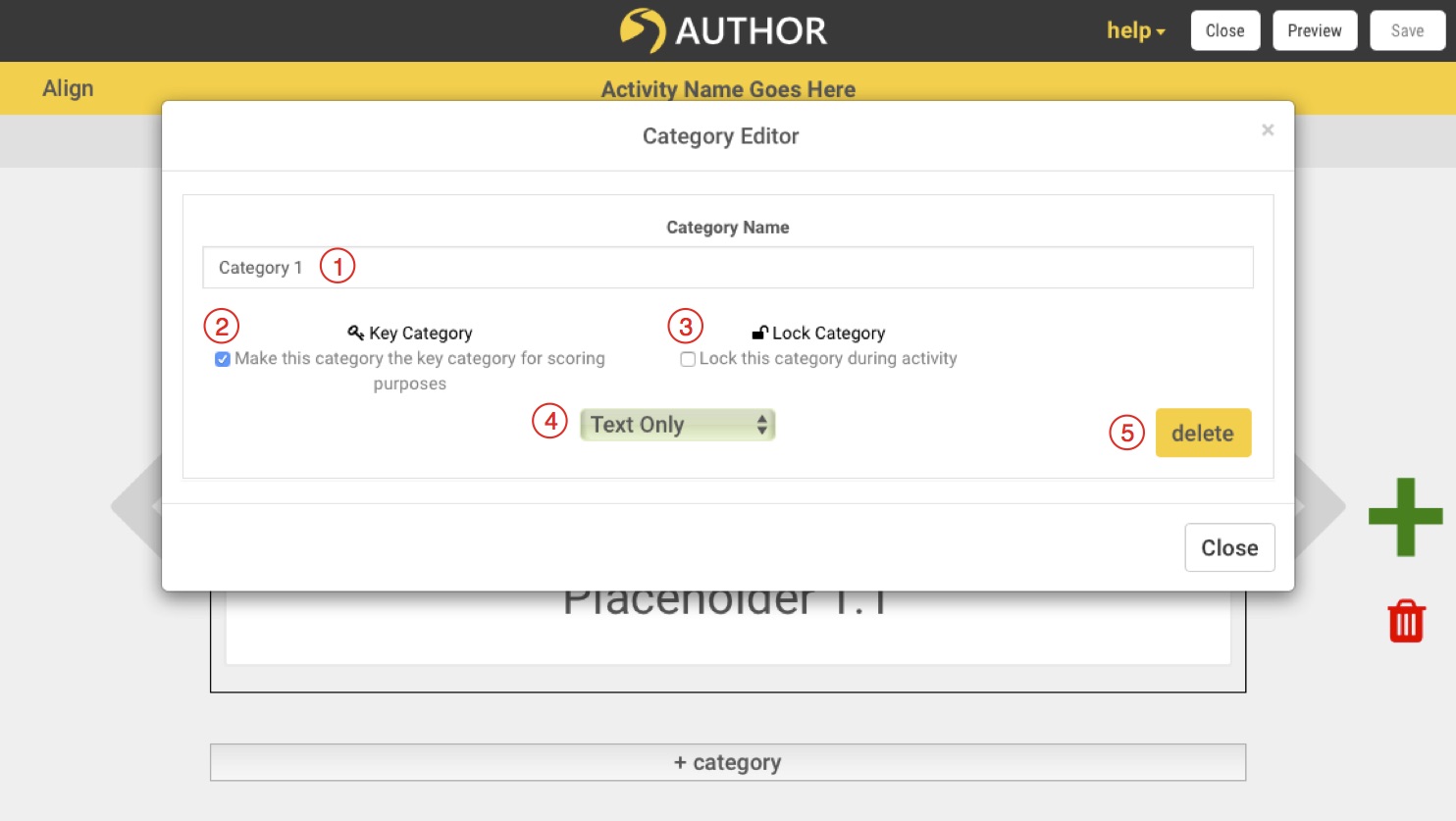
Change the name of the selected category by entering text in the ‘Category Name’ field to define what kind of items it will contain. (1)
Key Categories
Choose whether the category you are editing is the “Key Category” of the activity by clicking the ‘Key Category’ checkbox. (2) If it is checked, the ‘Penalty for Incorrect field will disappear. Designating a category as the “key category” establishes that items in other categories will be judged as correct or incorrect based on whether they match the item in the key category.
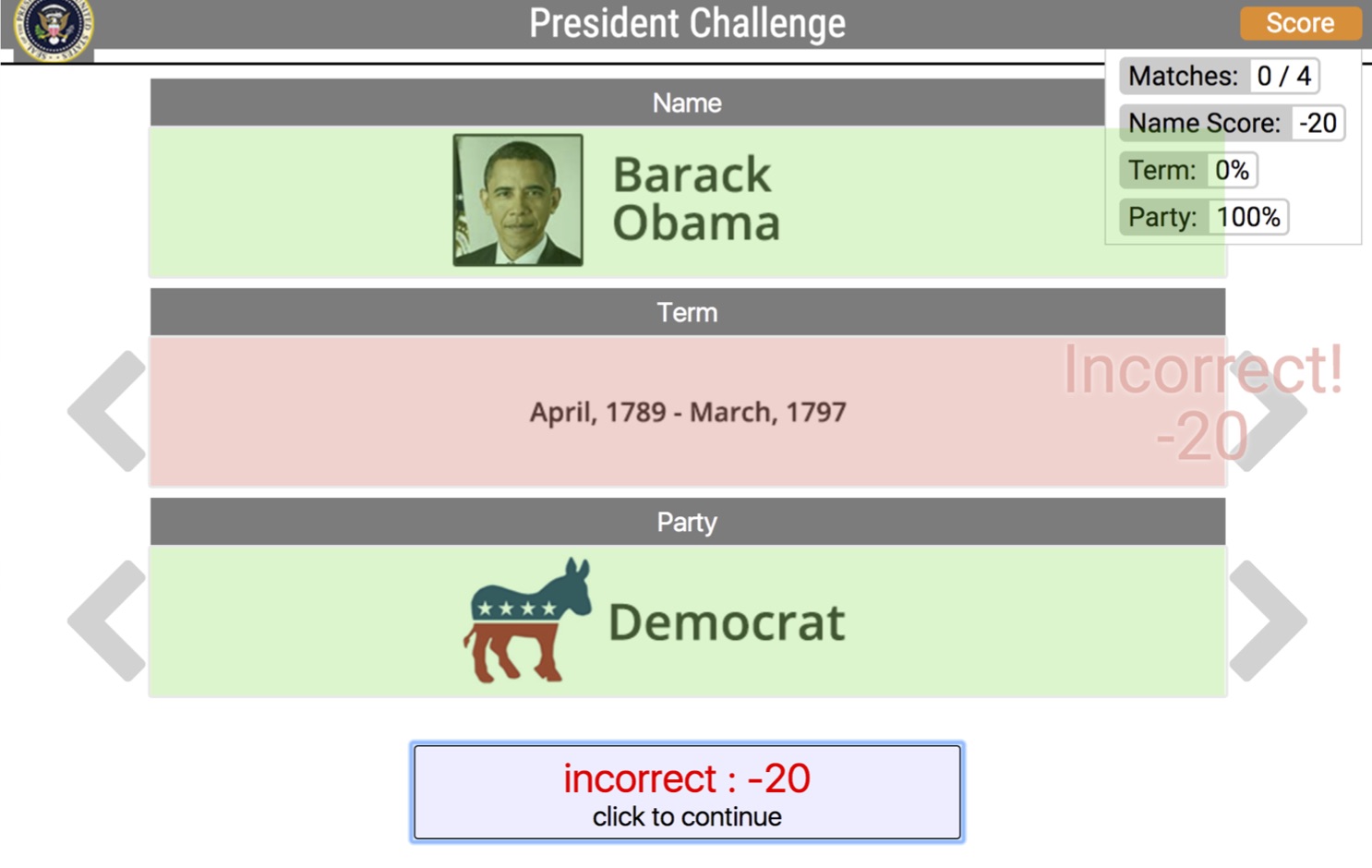
For example, in an activity matching information about US presidents, pictured above, the ‘Name’ of the president would be the key category, while ‘Political Party’ and ‘Term’ would not. The correctness of items in non-key categories are measured against their conformity to the item in the key category. So, if a user matched “Barack Obama” with ‘Democrat’ and ‘1789-1797,’ ‘Democrat’ would turn green and ‘1789-1797’ would turn red. The ‘Score Penalty for Incorrect’ in the ‘Term’ category would also be applied. The percentage scores in the top right of the activity next to the names of their non-key categories display the percent of the time when the match button was clicked and items in that category matched the item in the key category, regardless of whether the entire set of items was correct. These numbers will also display for the students at the end of the activity and can be viewed by the instructor who assigned the activity or in the integrated learning management system.
Lock a Category
In the Presidential History example above, there are no arrows to the right and left of the ‘Name’ category. This is because the category is ‘locked.’
To lock a category, click the checkbox under ‘Lock Category.’ (3) Lock a category when you do not want a the user to be able to cycle through the other options in a category until they have correctly matched items from other categories to the current item in the locked category. It is recommended that you only lock your key category, which is usually best as the top category in the activity.
Point Penalty for Incorrect
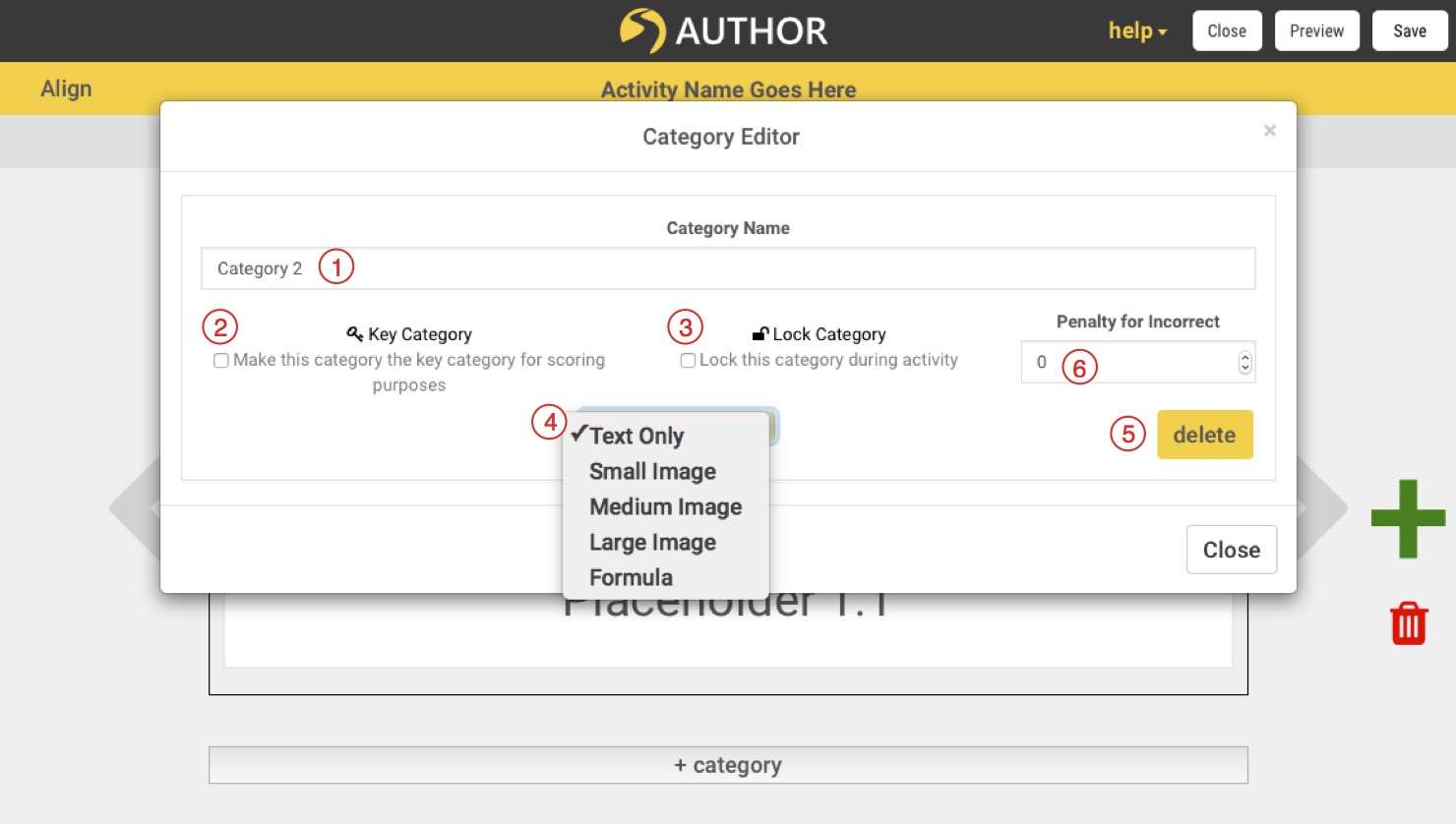
Adjust the points subtracted from a user’s score in the ‘Penalty for Incorrect’ field (6) using the up/down carrots or by typing a number in. The value of the penalty for incorrect will be applied when a user does not correctly match an item in that category with the item in the key category as described above in the Presidential History example.
Adjust Types of Items
Adjust how the items in a category are displayed by clicking the ‘Type of Item’ drop down(4) and choosing a type. Items in a category can be displayed uniformly as text only, small, medium, or large images, or mathematical formulas. Changing the type of item will change the options when you add an item in the ‘Item Editor.”
If you have already entered text into items in a category, perhaps having used a .csv file and you change the item type from text to small, medium, or large image, the text you have entered will become the descriptive text for screen readers playing the activity. If you plan to add images to your Align, but want to built it using a .csv, put placeholder text into the cells where you want images and replace them in the template once you have uploaded the .csv. (To learn more about using a .csv file to create an Align activity, click here.)
During play, regardless of whether the category is set as small, medium or large, the size of the image will only display as large as the original size of the image. Align will scale an image down if it is too big, but will not stretch an image.
Delete a Category
To delete a category, press the ‘Delete’ button (5) on the right hand side of the Category Editor.