
Branching
This walkthrough is for branching from multiple-choice questions (including image response and image hotspot), but a similar process applies to open-response questions. For specifics on branching from open-response questions, scroll to the end of the branching guide.
Multiple Choice Walkthrough
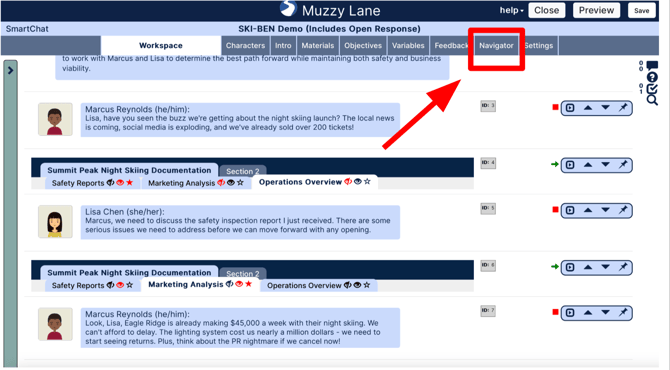
1. From the workspace, click the "Navigator" tab on the bar across the top. This will give you a different view of the activity that is better for visual branching.
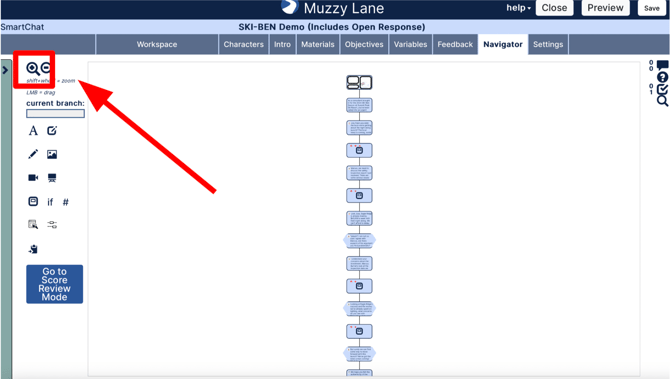
2. Once in the Navigator, you can see the flow of your activity. Branches are created from questions, so use the "+" button to zoom in on the question you want to branch from. Note: Question nodes show up as hexagons, event nodes (narration, dialogue) show up as rectangles.
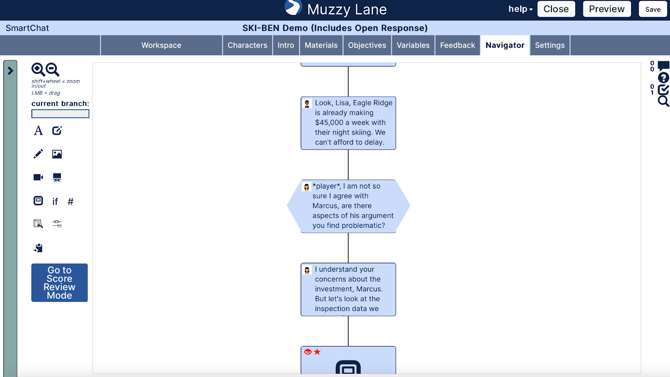
3. Once you've zoomed in on the question node you want, click on it once to select it (it will turn green once selected).
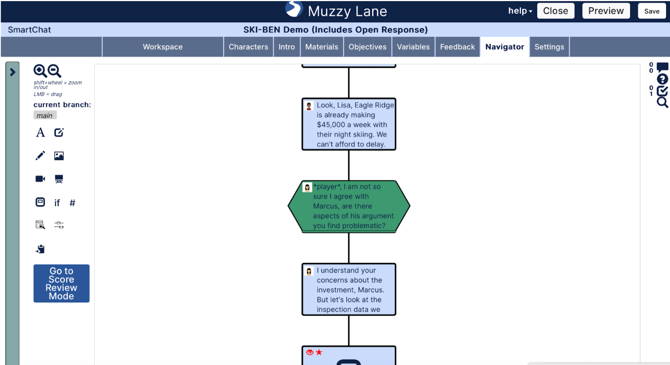
4. Click on the question node again to open it.
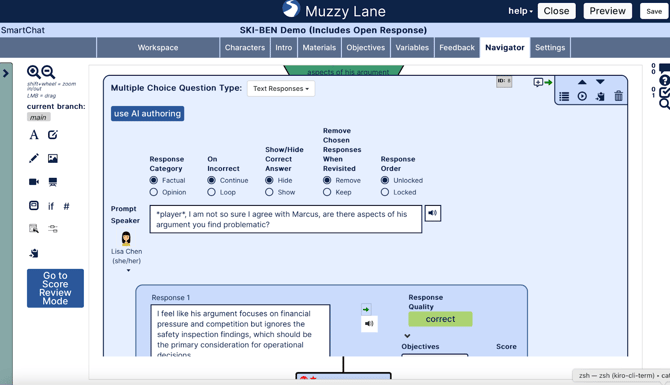
5. The correct answer will continue the player down the main branch, so you are not creating a branch there. You can create other branches from the partially correct and incorrect answers.
Scroll down to the partially correct or incorrect answer and click on "+branch" to add a branch.
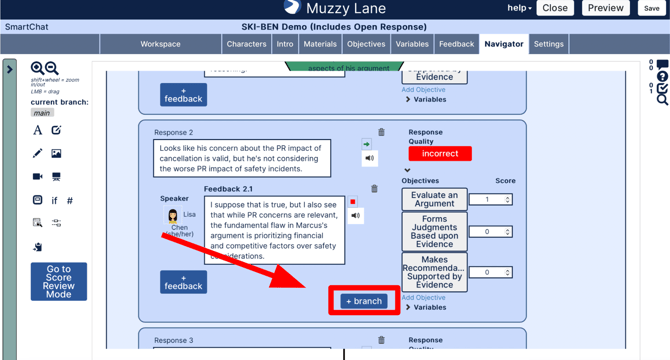
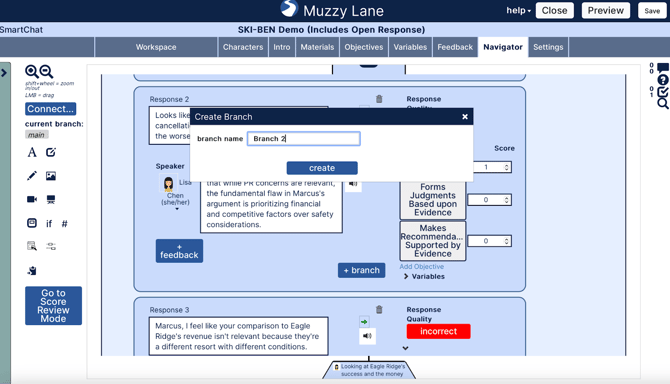
6. Name your branch and click "create". Great examples can be: "Branch 2" or "Partially Correct Branch".
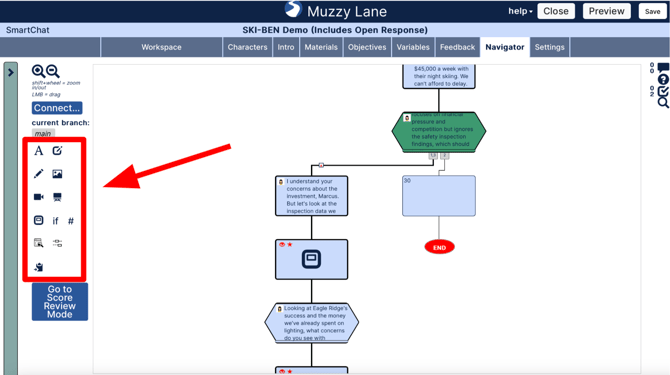
7. You've officially named your branch! Take a look at the left side and notice the controls (these also appear on the workspace tab). You can add more nodes by clicking on their represented icons in the control center.
8. Notice how the last node in the branch ends the activity. So, once the player gets to node 33, the activity will end. If you want to connect that branch back to the main branch, select the last node and click "connect" on the left side of your screen. Then, click on the node you want to connect it to and click "finish connection".
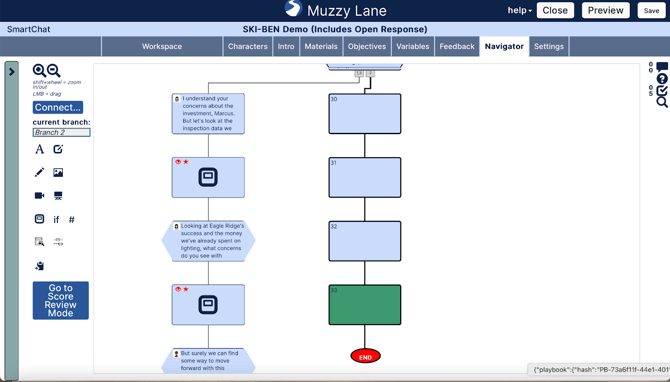
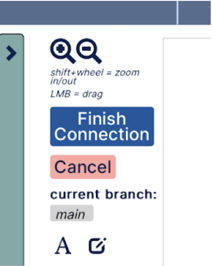
This image shows that the player will return to the node before the question, so they can try the question again and have an opportunity to go down a different branch.
9. Now, you can see that after node 33, the branch goes back to point A, which is the node selected in green.
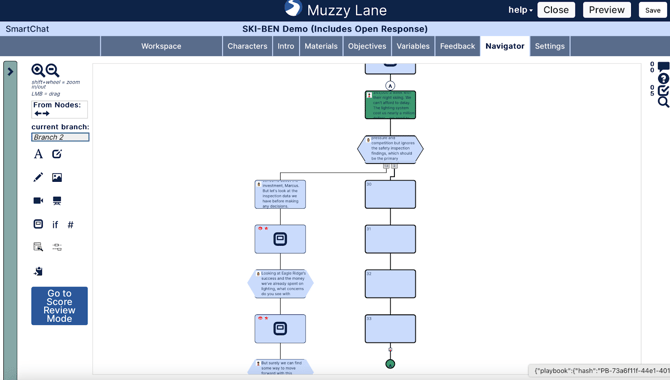
You've successfully created your own branch! Feel free to create more branches from other incorrect answers of the same question, or for other branches.
Note: The Production Assistant currently can't create branches, but it can fill them in once you create them. If you ask the PA to create content, you must include the correct node in your prompt. To find out what the PA named the node, open it and look at the node ID.
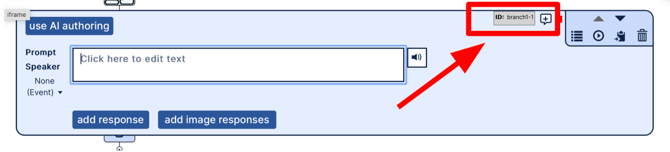
In this case, a request to the PA would look like "Create content in node branch1-1" or "Create a question in node "branch1-1".
Open Response Branching
Branching on an open response question is similar, but you must pick a branch condition. Unlike multiple-choice questions, there are endless possibilities of open-response answers. So, we give you the opportunity to specify when you would like a branch to occur. For example, if the Open Response question asks a player to pick option A or B, you can create a branch for when the student selects option B. That scenario is as follows:
1. Open the response question and click "add branch condition".
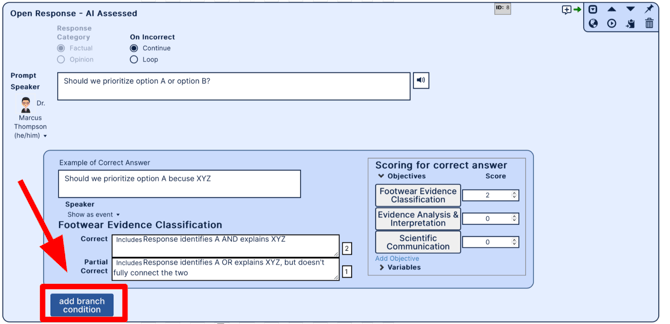
2. A text box will appear after "Take this branch when:" and fill it in with your branch condition. This can be anything that a player may respond with. Feel free to rename where it says "Branch Condition 1". An example in this scenario might be "Option B Branch".
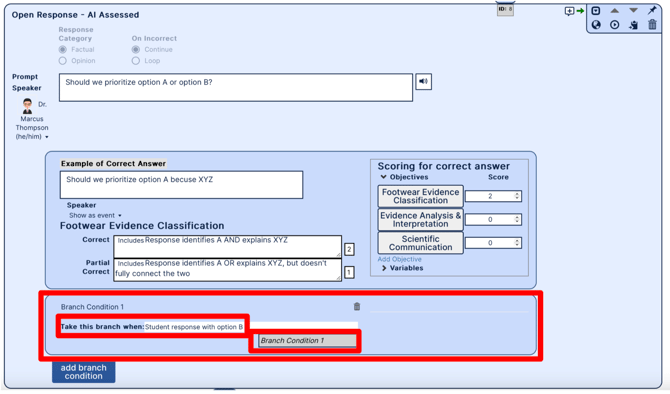
3. You can either be done with one branch or you can add more branches by repeating steps 1 and 2.
Deleting Nodes That Connect to Branches
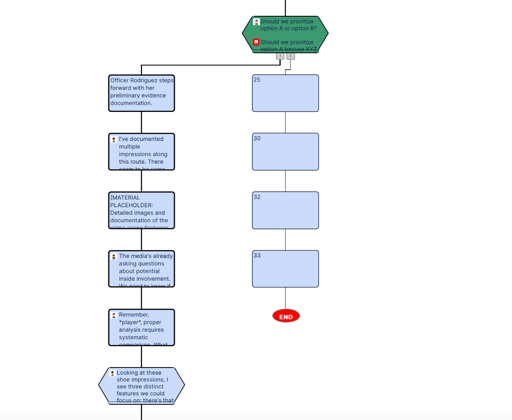
Once a branch is created, you have to delete or move all content from the branch before you delete the parent node of the branch. So, if I wanted to delete the question selected below, I would have to delete all of the nodes underneath it first.
Looping
Looping Walkthrough
1. Open a question to reveal this bar at the top:

Here is a breakdown of each function:
- Response Category:
- A set of responses can be set as 'factual' or 'opinion' based on toggling the 'response category' button.
- Only factual questions can loop on incorrect.
- Any response marked as correct will stop the loop.
- On Incorrect:
- If you want users to be presented with the same question again if they get it wrong, toggle the 'On Incorrect Button' from 'continue' to 'loop'.
- If the button is set to 'loop', when the user gets an answer wrong, the activity will play through that response's feedback, the response's score will be applied to the user's overall objective scores, and the prompt will be displayed again, this time without the incorrect response(s) they chose previously.
Multiple Choice Looping
- For multiple-choice questions (including image response and image hotspot), the number of loops equals the number of possible responses. For example, if there are 3 possible responses, the player will have 3 tries to get the question correct.
- If you choose to loop a multiple-choice question, make sure the in-character feedback for incorrect responses indicates another attempt. For example, "I think you can do better, try again".
Other Question Types
- For all other question types, the player will have 3 attempts to get the answer correct before moving on.
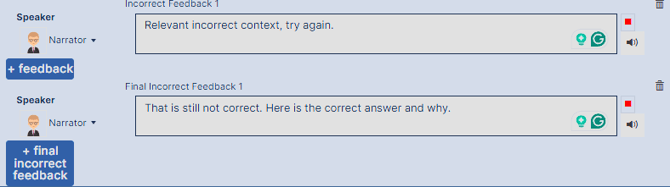
- For 'loop on incorrect' for fill-in-the-blank questions, select all that apply, and categorize questions. There will be two sets of feedback: feedback and final feedback. Feedback for incorrect responses indicates another attempt. Players will get what was correct and what was incorrect, but not how to get the right answers. Final feedback is the feedback they will see after the three attempts, indicating what the correct answer should have been.
Note: for categorizing and drag and drop questions, we keep correctly placed responses in place for the next attempts. Only incorrect responses go back to the item pool to be placed again.
Looping Scoring Specifics
- Overall, the points a player receives for each question equals the points earned divided by the maximum points possible.
- Suppose a question is worth 3 points. If the student gets 1/3 on the first attempt and 3/3 on the second attempt, their total score for that question will be 4/6.
Looping vs Branching
- Note: Looping and Branching cannot both be used on the same question.
- Looping and branching share some commonalities, but we define them differently.
- Looping occurs on one question node that doesn't continue until it is resolved (either the player gets the question correct or the maximum number of attempts is reached).
- If a branch connects back to the main storyline before a question, the student will answer the question again, but this is not our definition of a loop.